
Please follow the guide below:
1. On your mobile phone, locate the search bar at the top of your device and type "Playstore", or alternatively,
look for the Playstore icon  directly on your phone. See the screenshots below for reference:
directly on your phone. See the screenshots below for reference: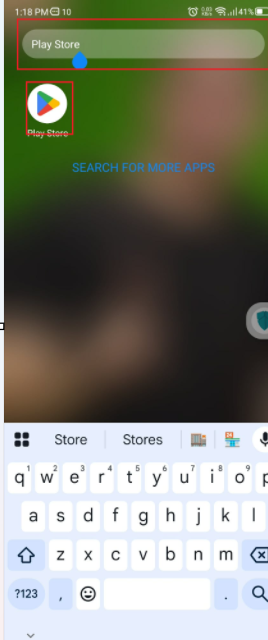
2.Open the Play Store app. In the upper-right corner, you will see the initial of your Gmail account. For example, since I’m using castrogilben@gmail.com, the initial is G. (EXAMPLE)
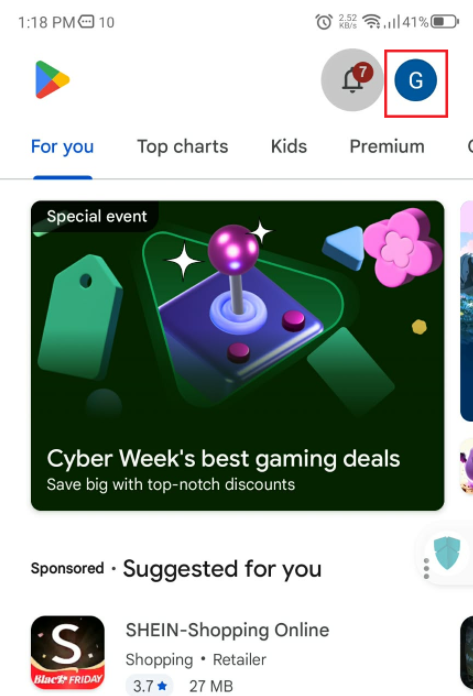
3. After clicking your initial in the Play Store, select “Payment & subscriptions.”
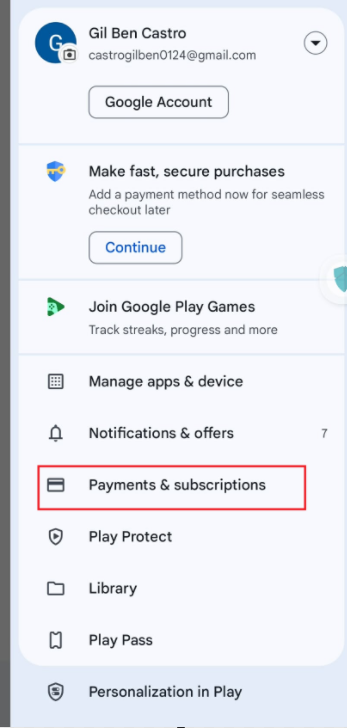
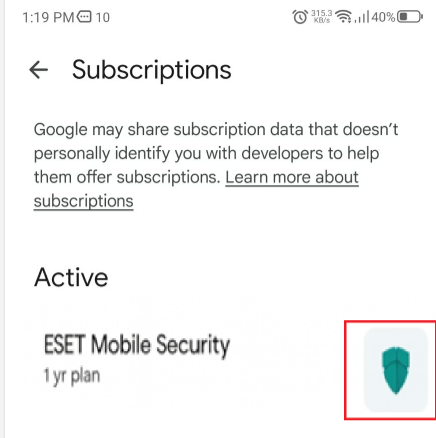
4. After selecting “Payment & subscriptions,” go to the “Subscriptions” section.
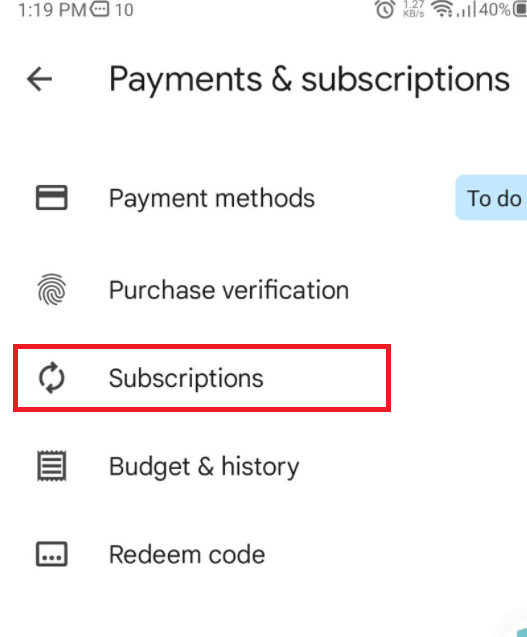
5. Under “Subscriptions,” click the ESET icon located in the upper-right corner of your device.
Note: The screenshots below are for reference only and may not show your actual ESET subscription.
Note: The screenshots below are for reference only and may not show your actual ESET subscription.
6. Under “Cancel subscription,” select a reason for canceling from the dropdown menu. Choose “Other” and in the field provided, type: “I have ESET subscription.”
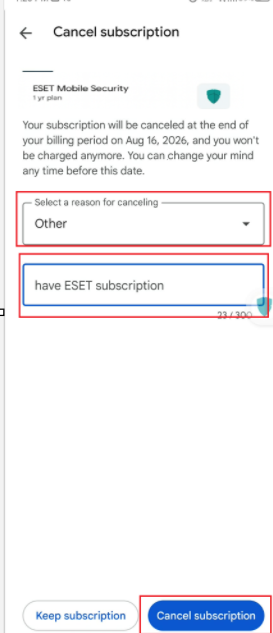
7. After clicking 'Cancel subscription' you will be able to see from the below screen that the 'Subscription will be canceled'

After canceling the subscription from google playstore you can now activate your ESET Mobile Security from your device, please follow the below guide:
See the below, please review the below guide:
1. Open the ESET Mobile Security app from your Phone or Tablet
2. On the top-left corner, tap the Menu icon (☰ with dots).
A side menu will open with options such as Account, Settings, and other features.

3. Once you see the list of settings > please click > 'Login to ESET Home' (Sometimes it will display your email address)
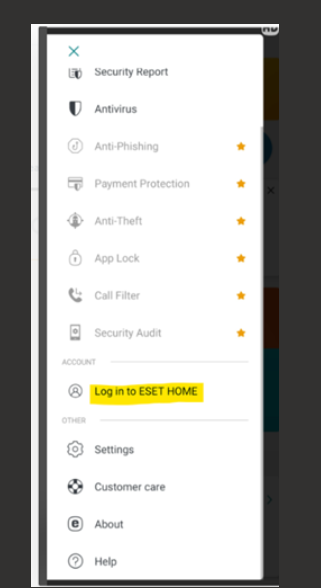
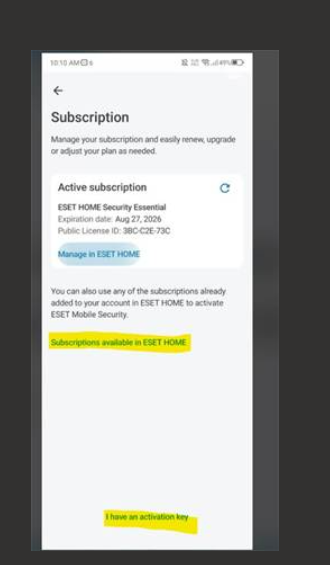
- Click on Subscriptions > View subscription details.
This option shows your active subscription details, manage in ESET HOME & allows you to enter activation key I have an activation key
- Enter your activation key to activate:
Once you do that, you will be able to protect your ESET Mobile Security