
Please see the steps below:
In some cases we’ve encountered, ESET HQ recommends disabling any diagnostics and logging from the ESET program.
1.Open the ESET program.
2. Go to Advanced Setup.
3. Navigate to Tools > Diagnostics.
4. Under Dump type, click Disable.
(Please note that you can enable this setting again when needed, especially if requested by ESET Technical Support.)
Diagnostic dumps are mainly used for:
• Crashes
• Debugging
• ESET technical support investigations
• Crashes
• Debugging
• ESET technical support investigations
If enabled, ESET may generate large diagnostic files such as
.dmp, .pcap, or log files that can consume significant storage space.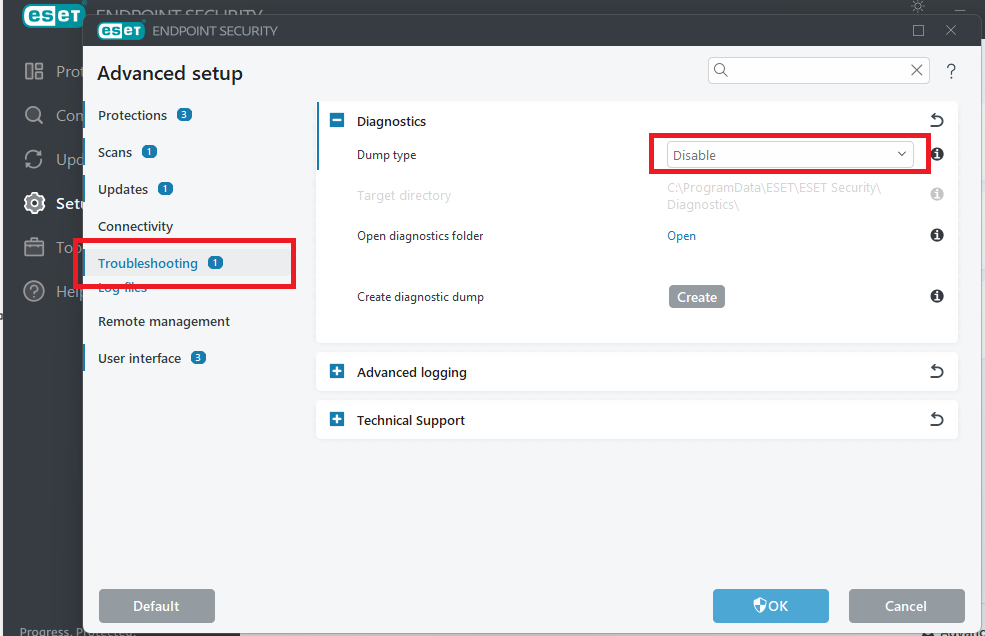
5. From the same page :
- Open the ESET program.
- Go to Advanced Setup.
- Navigate to Tools > Diagnostics (or Troubleshooting, depending on the version).
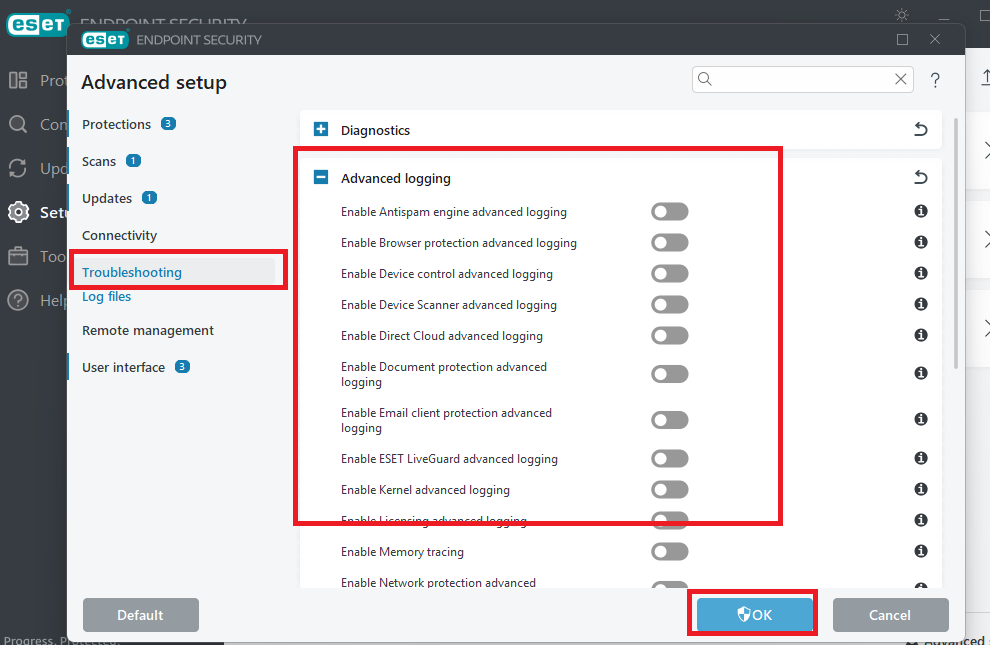
- Under Advanced logging, check if any logging options are enabled.
- Disable all enabled logging options.
- After disabling them, please try deleting all the files from Diagnostics folder.
If the problem still persists, based on ESET recommendations, this issue is usually caused by corrupted or purged files from the ESET installer.
As an initial step, please try performing a typical uninstallation first using the guide below:
https://help.eset.com/ees/12/en-US/uninstallation.html
https://help.eset.com/ees/12/en-US/uninstallation.html
After the uninstallation, reinstall ESET and perform a fresh installation. Before proceeding, kindly check if there is any password policy enabled on the product.
If the issue still persists after the fresh installation, you may proceed with the final step by using the ESET Uninstaller Tool, which can completely remove residual logs and corrupted ESET files.
To fully uninstall ESET, please follow the guide below:
https://support.eset.com/en/kb2289-uninstall-eset-manually-using-the-eset-uninstaller-tool
https://support.eset.com/en/kb2289-uninstall-eset-manually-using-the-eset-uninstaller-tool
Before using the ESET Uninstaller Tool, kindly take note of the following:
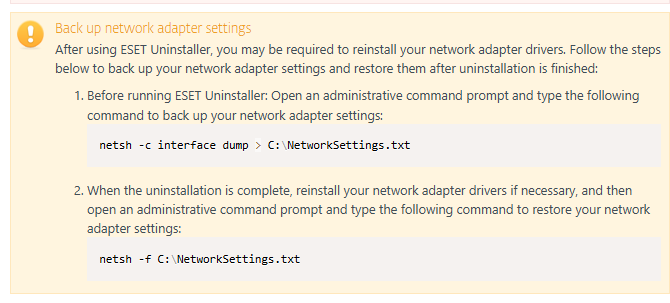
• Back up the network adapter settings before proceeding.
• Make sure you have physical access to the device, as it will need to reboot into Safe Mode.
• The ESET Uninstaller Tool helps completely remove any residual, purged, or corrupted ESET files from the system, then do not forget to install ESET Product
• Make sure you have physical access to the device, as it will need to reboot into Safe Mode.
• The ESET Uninstaller Tool helps completely remove any residual, purged, or corrupted ESET files from the system, then do not forget to install ESET Product
Hopefully the above steps will help resolve your concern. If the problem still persists, please feel free to reply to this email and we will receive a notification regarding your case for further assistance.
Cheers,
Gil