
Hi Team,
Any request for email address updates should be sent to support@microbe.com.au or sales@microbe.com.au.
Once the email address update has been completed by the Microbe team, please follow the guide below.
Please follow the guide below on how to change the email address associated with your ESET Home Account:
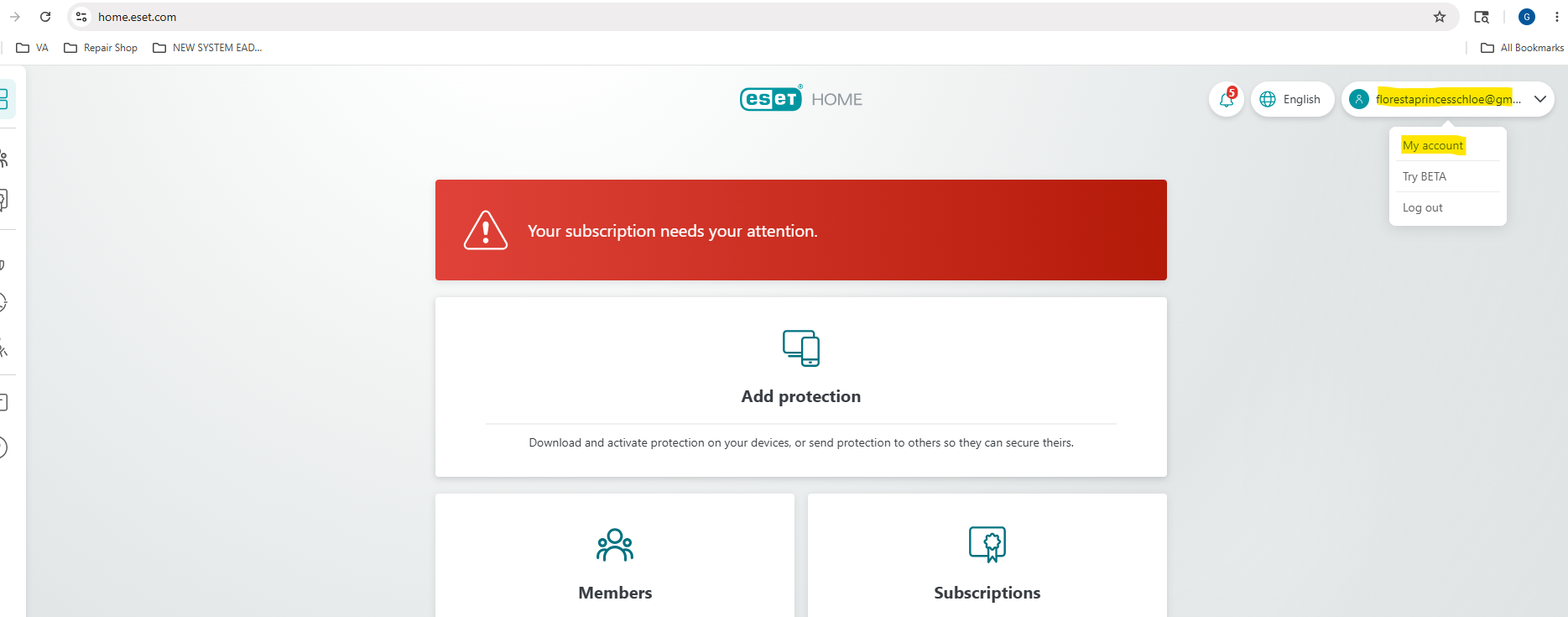
2. After logging in to your ESET HOME portal, click your email address located at the upper-right corner of the page, then select “My Account.”
See the below example
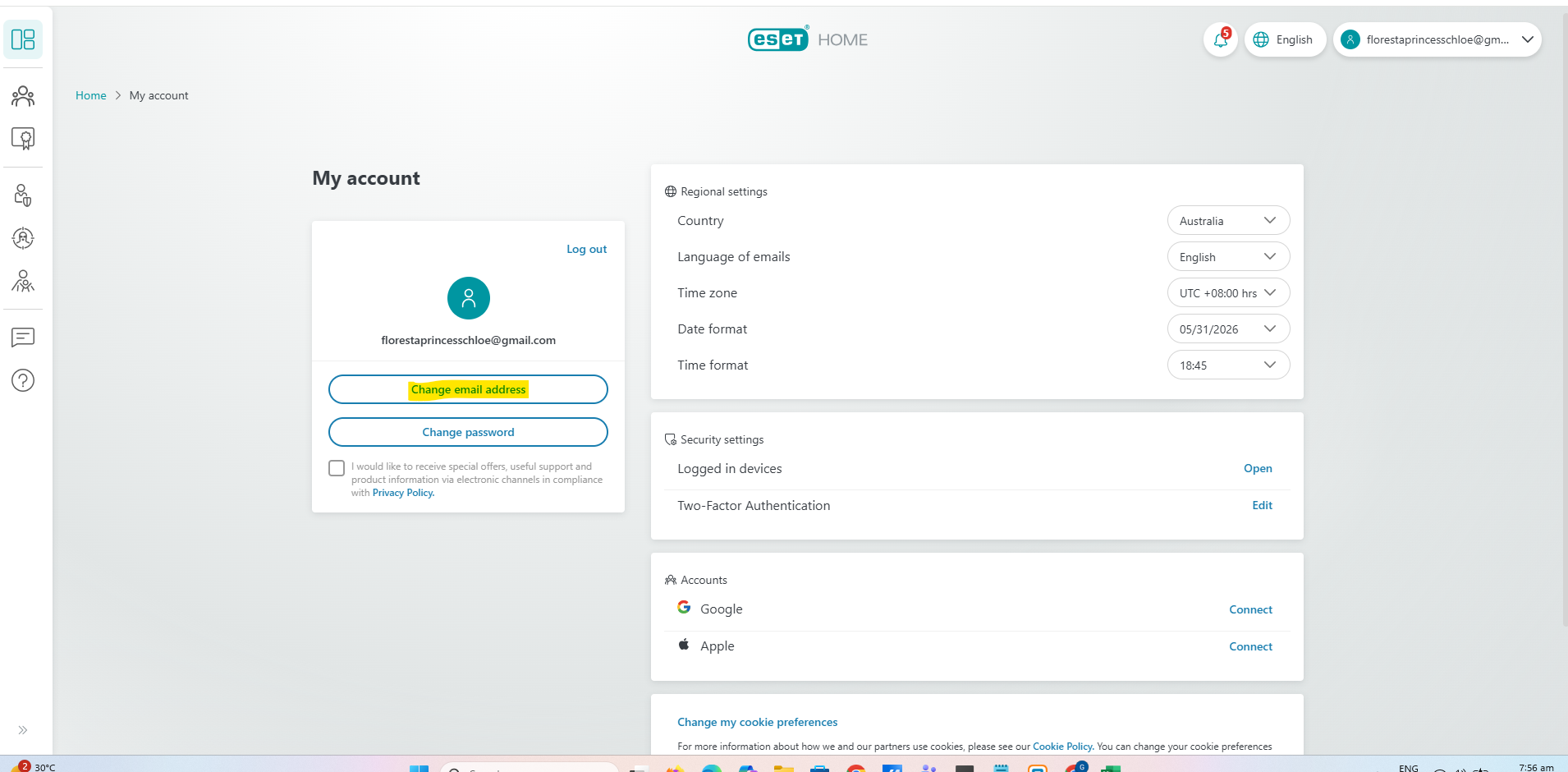
3. After clicking “My Account,” locate the left-hand panel at the upper section of the page, then click the “Change email address” option.
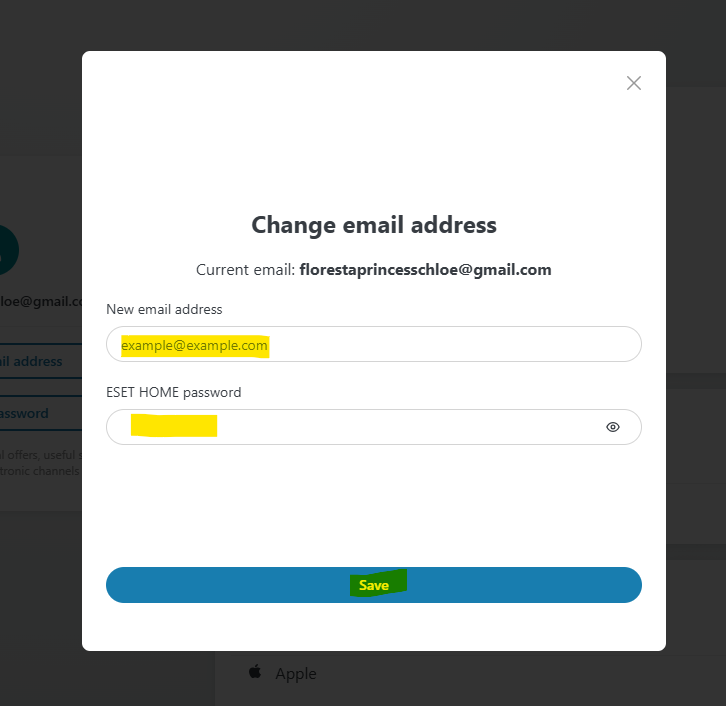
4. After clicking 'Change email address' you can now put your new email address and use your password' > then hit 'Save'
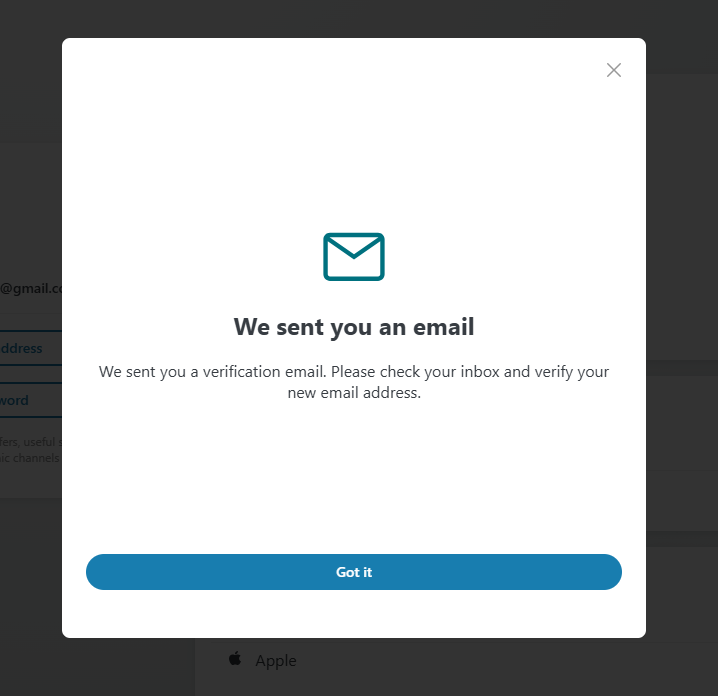
5. After hitting 'save' you will get this pop > just click got it
6. Then open your new email address (check your inbox) and check if you received the “Email address change request” email.
Once received, please click on “Confirm email change”.
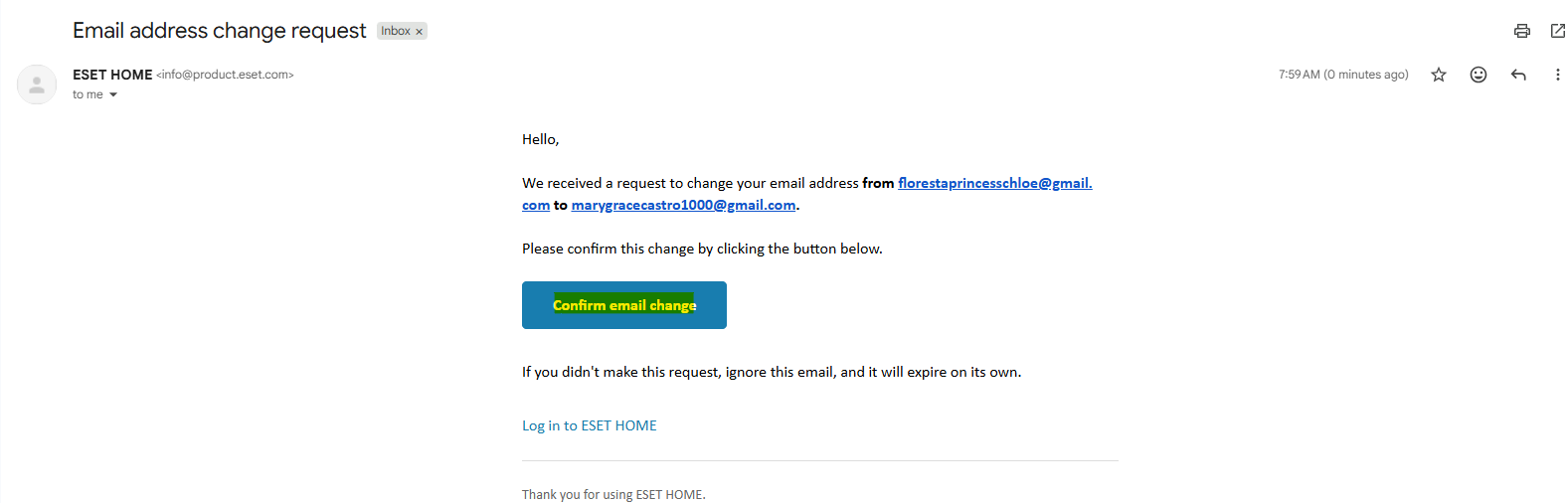
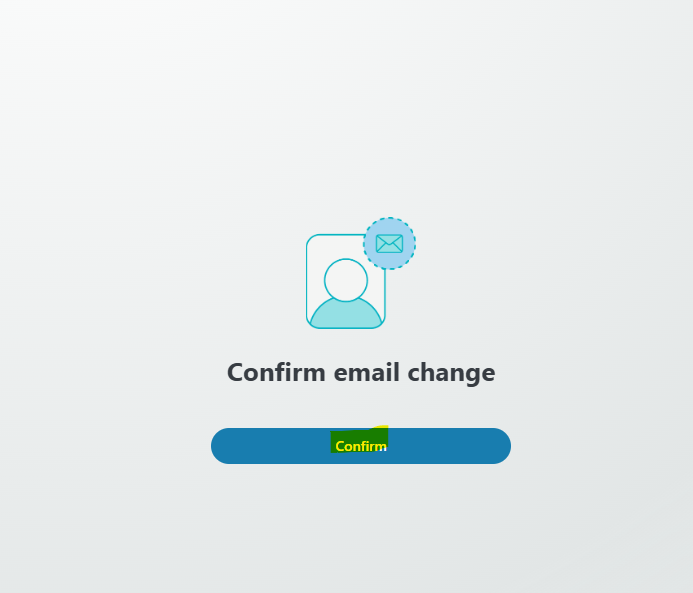
- After clicking “Confirm email change”, click on “Confirm”.
You will then be redirected to the ESET Home login page. Please try logging in using your new email address together with your password.
Cheers,
Gil