
Hi ,
To unassign licenses from computers that have been inactive or offline for a defined period, please proceed to your MSP portal.
From there:
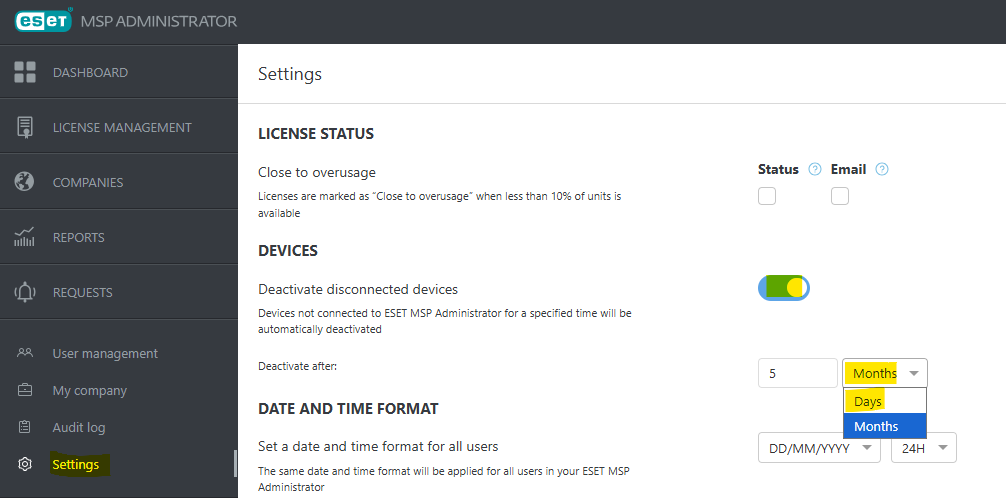
- Go to Settings
- Under Devices, enable the option for inactivity-based deactivation
- Set your preferred threshold (e.g., if a machine is offline for 5 months, it will be automatically deactivated from both ESET PROTECT and the MSP portal)
Please note that your license count is billed based on either Provisioned Units or Activated Units, whichever is higher.
To automate the activation task, once a machine becomes unactivated, the system will automatically assign a license when the ESET product on the customer’s device is deactivated or goes inactive.
I found a guide showing how this can be implemented in ESET PROTECT using automation workflows. It involves creating a Dynamic Group that detects unactivated devices and linking it to an activation task per customer, which ensures the correct license is automatically applied. You can refer to this resource and specifically check the section around 3:23, where it demonstrates creating a dynamic group for unactivated devices and setting up automated activation tasks:
https://www.youtube.com/watch?v=A1ITnaG2-qk&t=325s
https://www.youtube.com/watch?v=A1ITnaG2-qk&t=325s
In summary, the process allows you to:
- Automatically detect unactivated endpoints using a Dynamic Group
- Trigger an activation task when devices join that group
- Assign the correct license based on the customer’s configuration
This ensures licenses are reassigned automatically whenever a device becomes unactivated or is newly detected without manual intervention.
I also tested it and it work, please see the below screenshots :
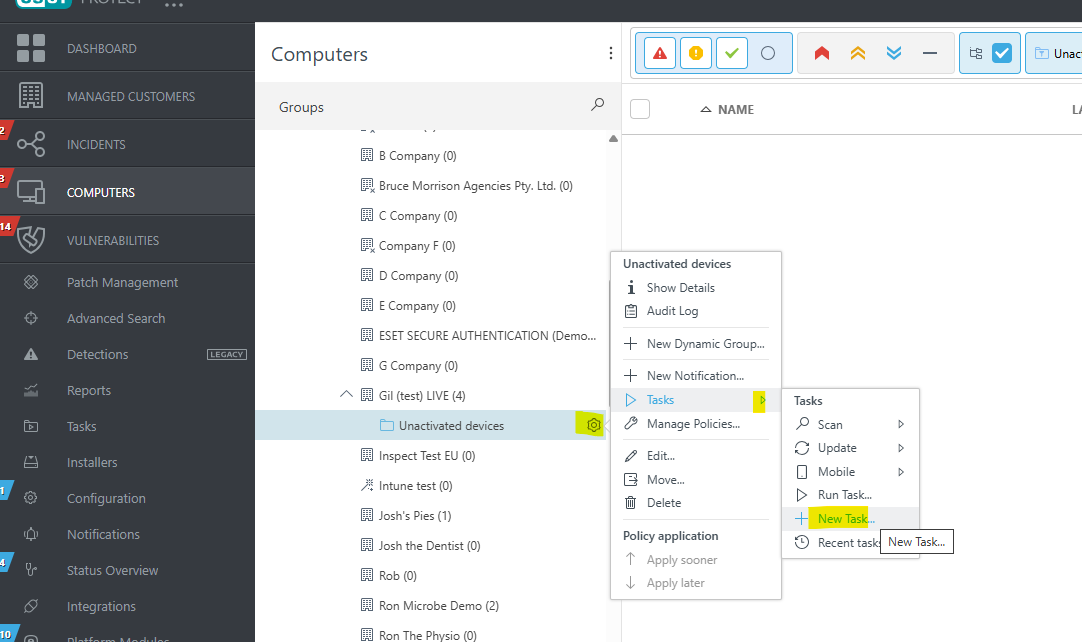
1. You need to create a dynamic group for each customer. Once it is set up, click the gear icon, then go to Tasks and select New Task.
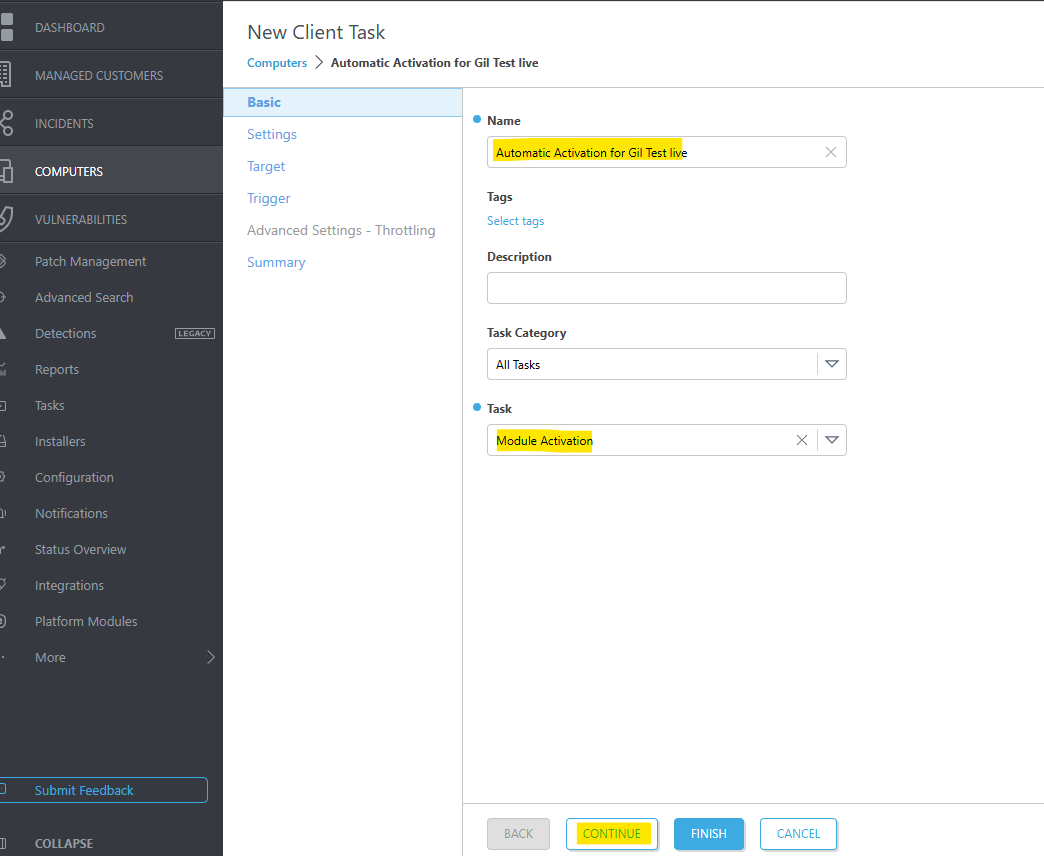
2. After clicking “New Task”, go to the Basic section. Enter the task name, then under Task, select Module Activation > then hit 'CONTINUE'
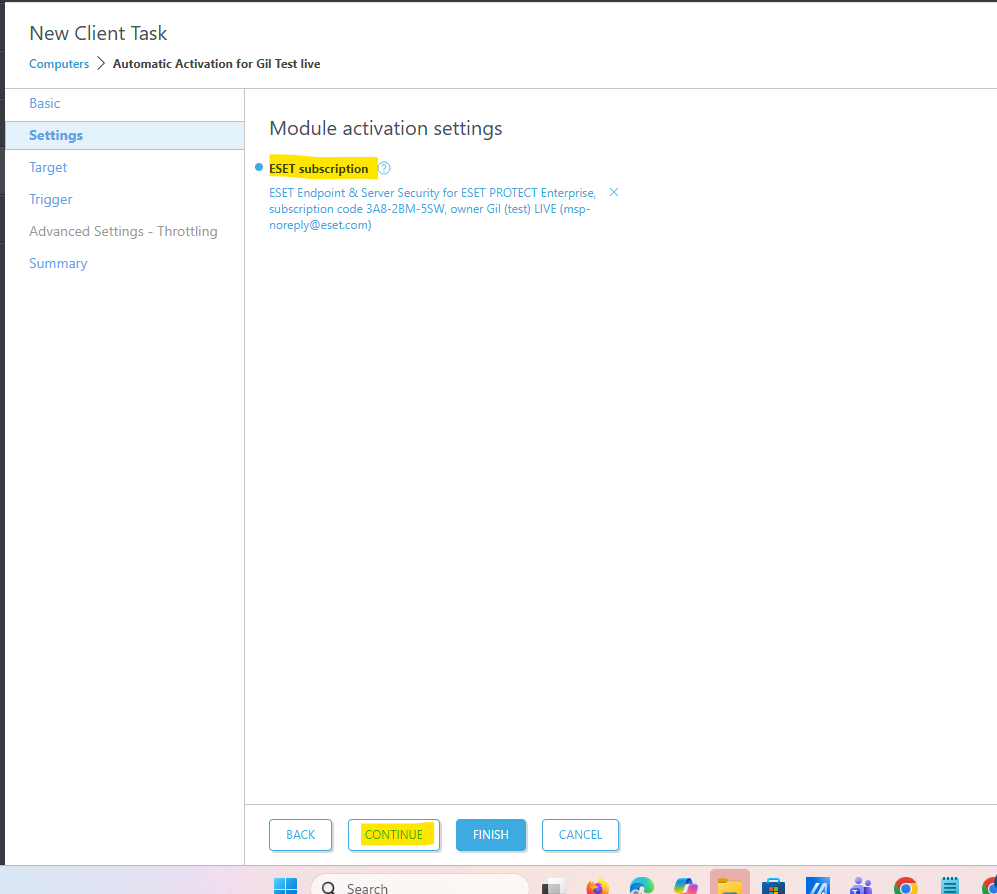
3. After clicking 'CONTINUE' make you selected the correct license then hit 'CONITUE'
4. After clicking 'CONTINUE' just click the dynamic group then select 'CONTINUE'
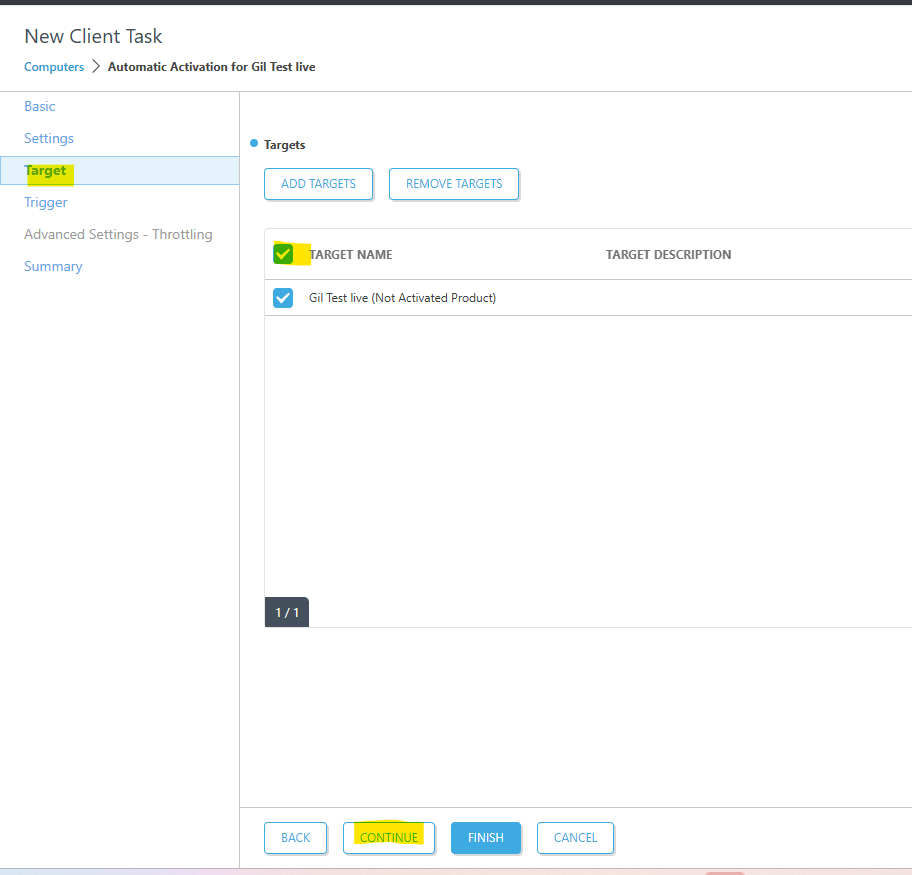
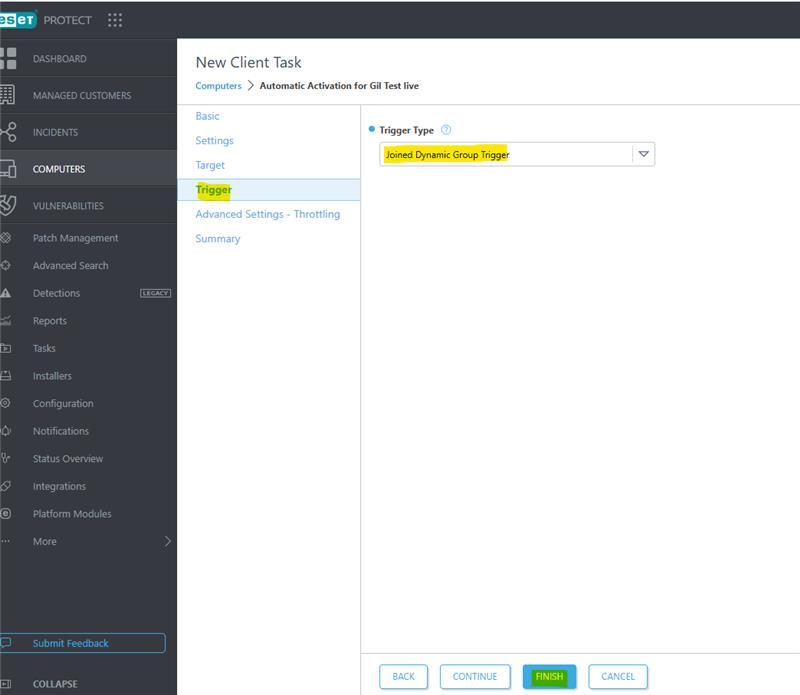
5. After clicking “Continue” in the Trigger section, make sure to select “Joined Dynamic Group Trigger.” This ensures that when a machine from a specific customer becomes unactivated and joins the group, the system will automatically run the module activation task and assign the license to the device.
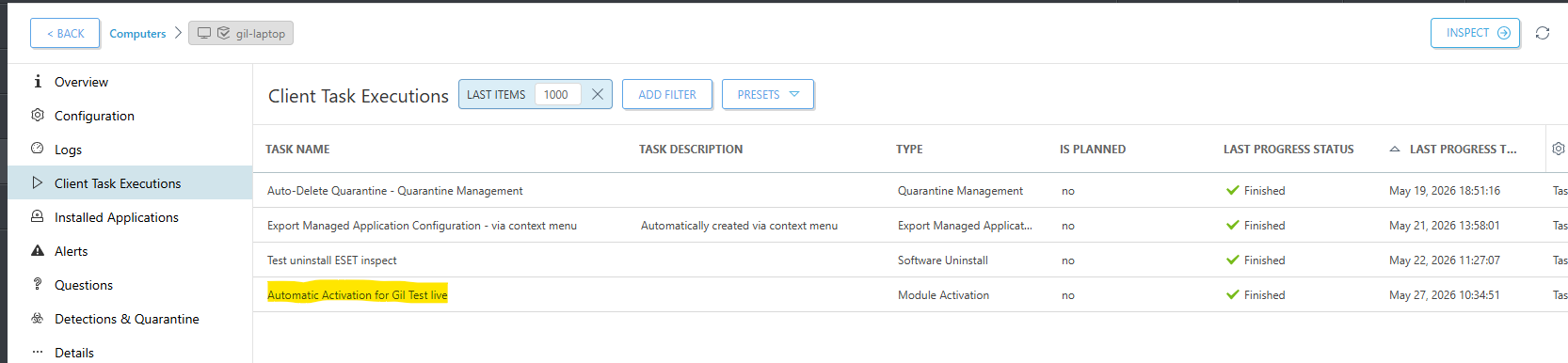
If you encounter any problem just email us from : support@microbe.com.au
Cheers,
Microbe Support