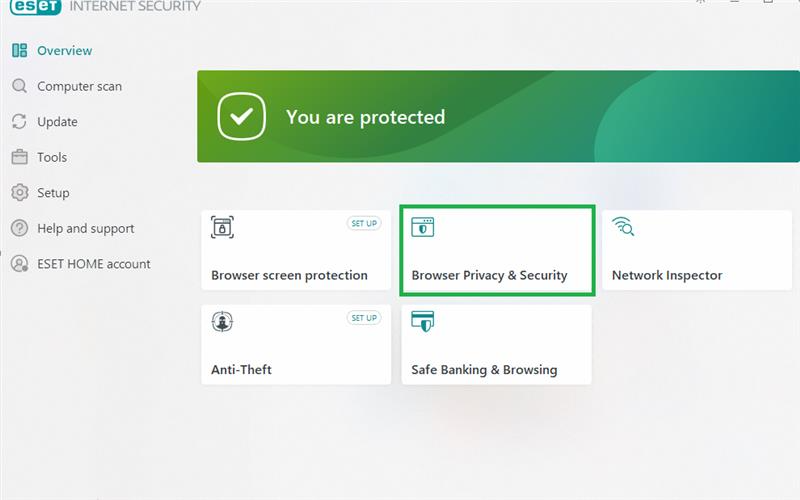
To disable the ESET Browser Privacy & Security notification, please follow the steps below:
1. Open the ESET program installed on your machine. You may refer to this guide:
https://support.eset.com/en/kb3152-open-the-main-program-window-of-eset-windows-applications
https://support.eset.com/en/kb3152-open-the-main-program-window-of-eset-windows-applications
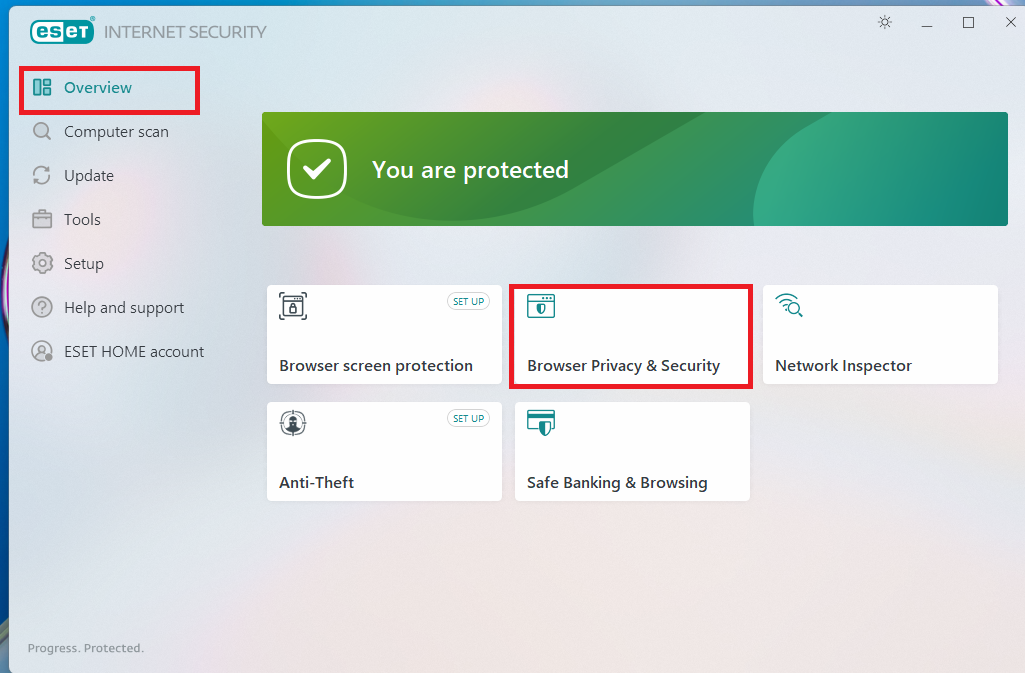
2. Once the ESET program is open, navigate to the Overview section and click Browser Privacy & Security.
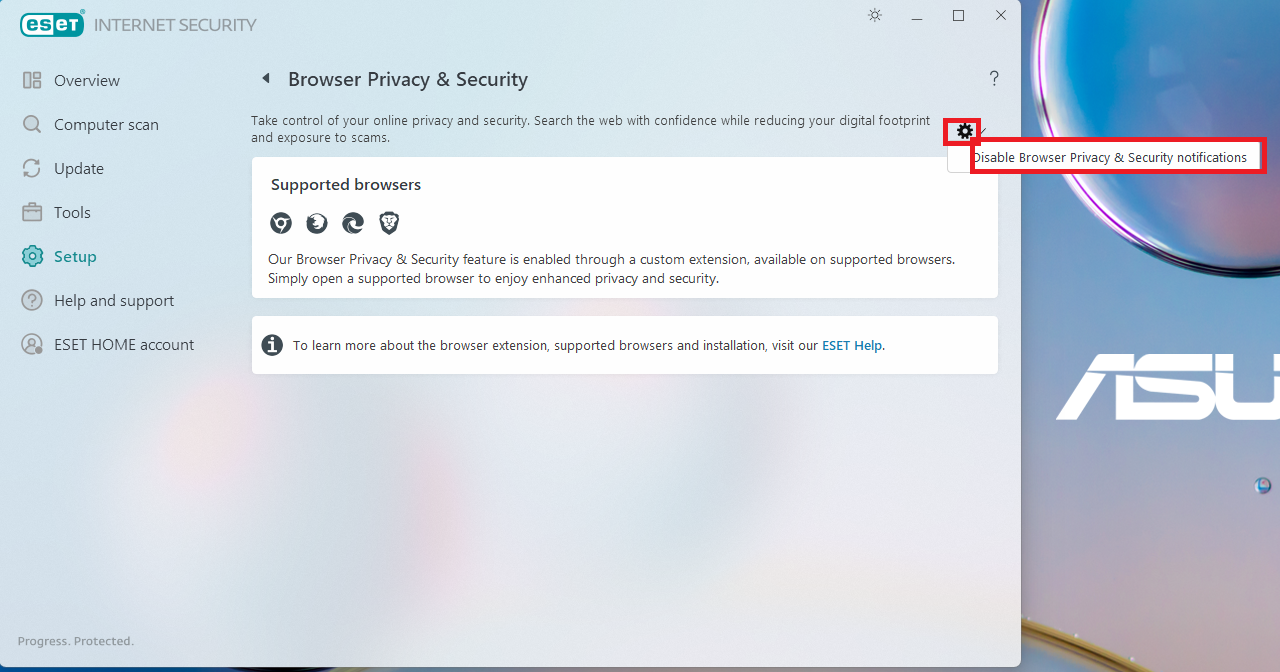
3. On the Browser Privacy & Security page, click the gear icon located on the right-hand side of the window, then select Disable Browser Privacy & Security Notifications.
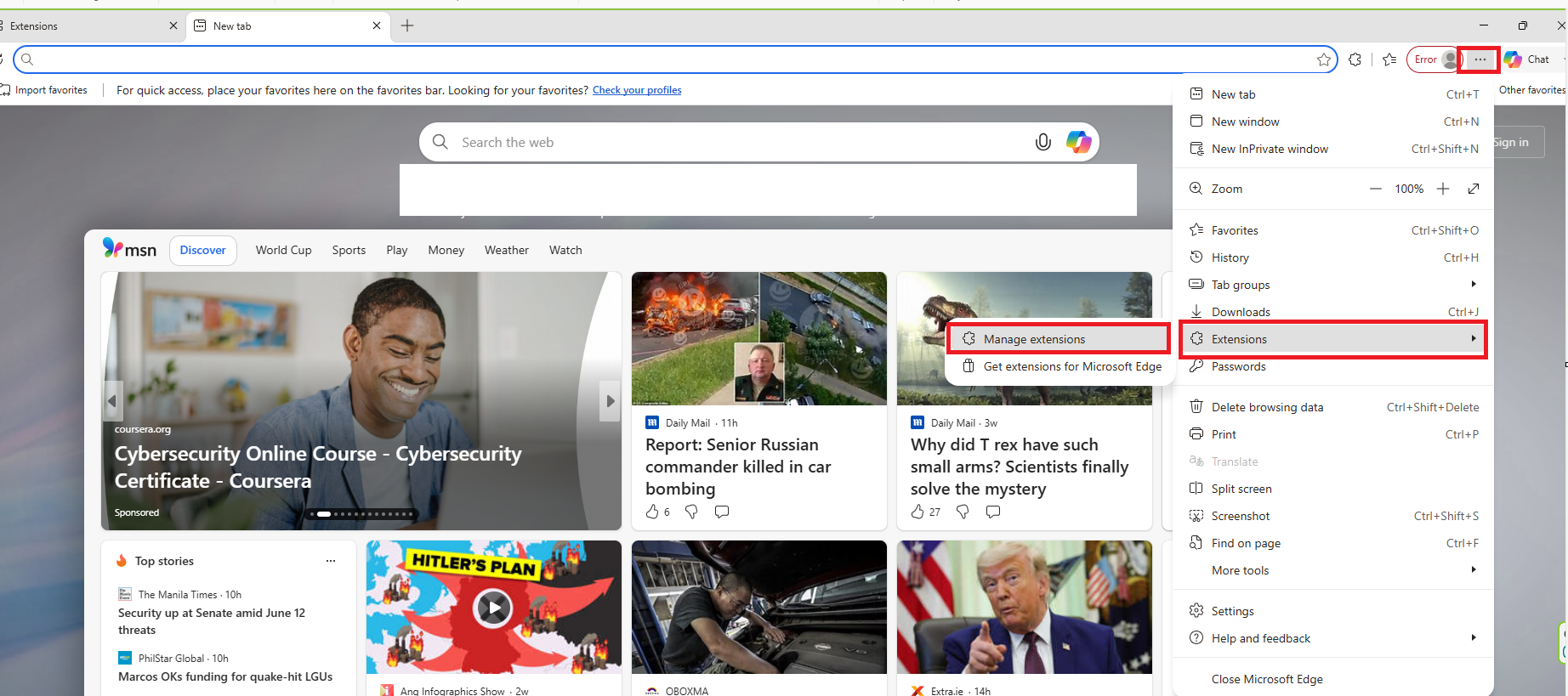
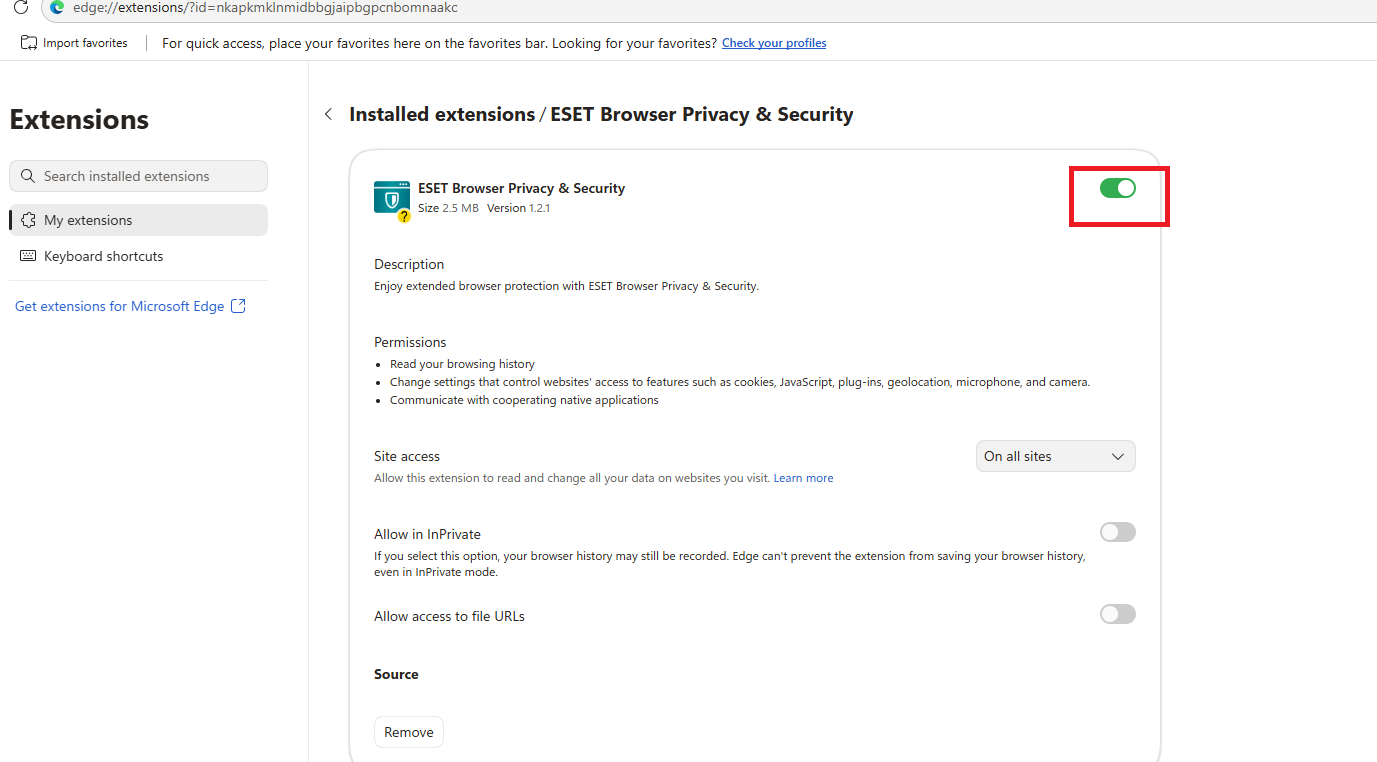
4. After completing Step 3, open your web browser and check if a pop-up appears offering to turn off the notification/Extensions. If no such option appears, click the three-dot menu in the upper-right corner of your browser, select Extensions, then click Manage Extensions.
5. Locate ESET Browser Privacy & Security in the list of extensions and disable the toggle switch. This will stop the browser notifications from appearing.
Please note that the above procedure only disables the notifications. The ESET Browser Privacy & Security feature itself will remain active and enabled within your ESET program.