Uninstall ESET home or small office products for Windows
- Click the search bar and type
ESET. Select your ESET app → Uninstall.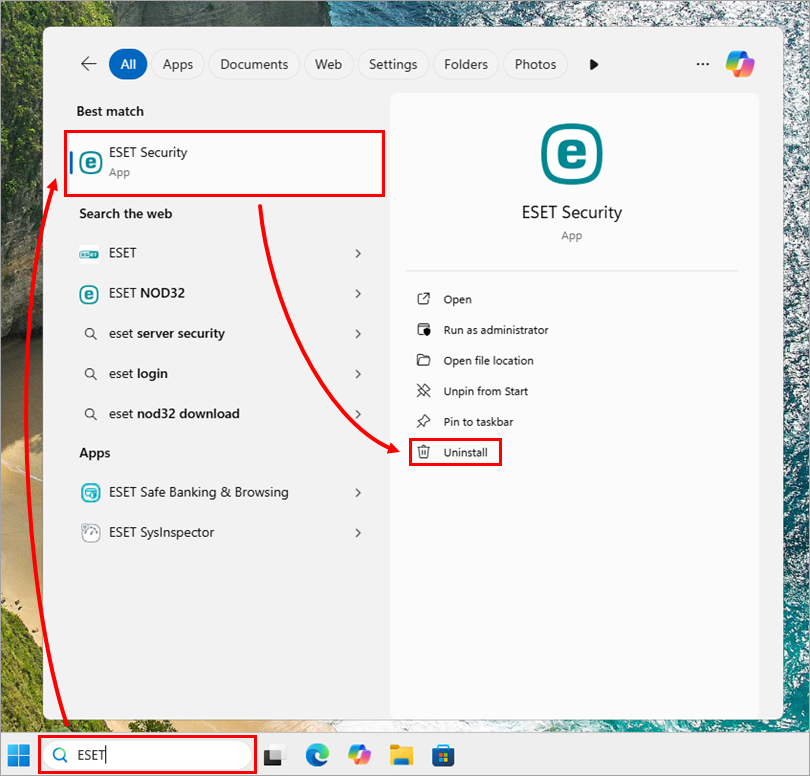
Figure 1-1 - Click the menu icon (three dots) → Modify.
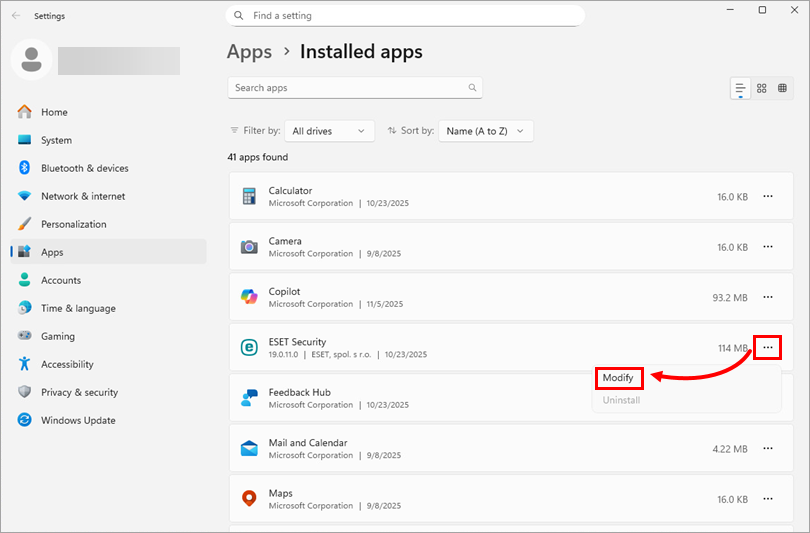
Figure 1-2 - In the installer, click Next.
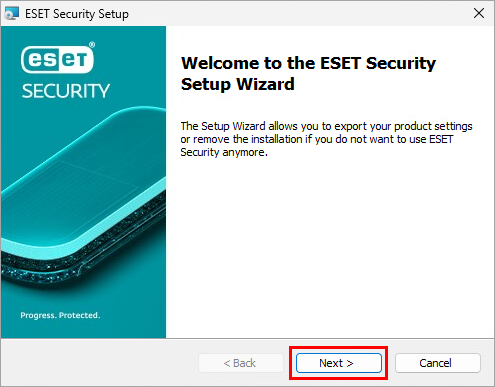
Figure 1-3 - If you have a system settings password or a Parental Control password, type it in the Password field and click Next.Please note that if you don't set any password from your ESET just leave it blank and click 'Next'
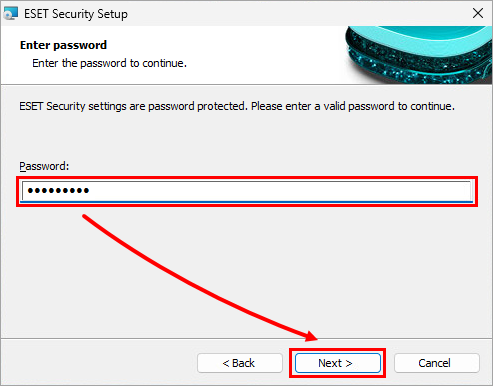
Figure 1-4 - Click Remove → Remove.
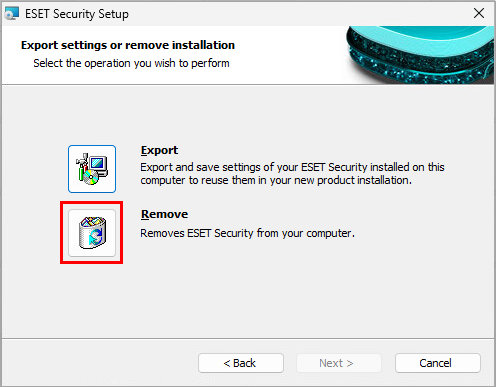
Figure 1-5 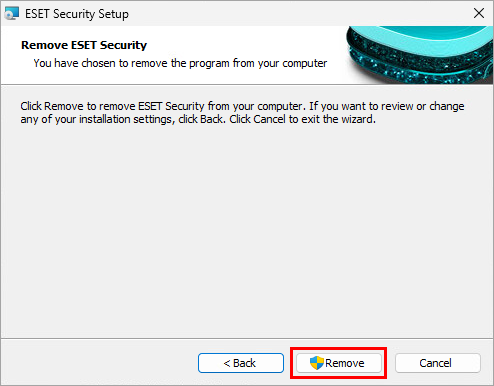
Figure 1-6 - Click Finish.
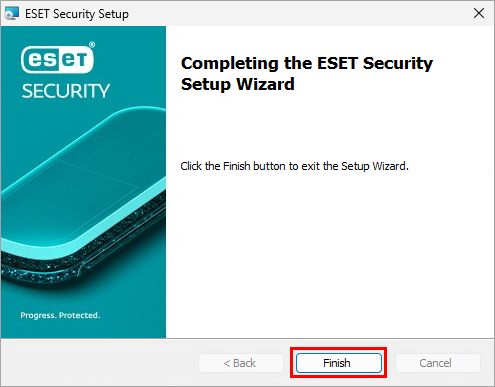
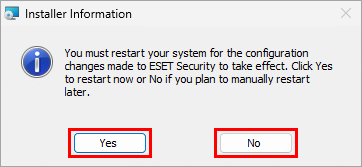
Figure 1-7 - Choose if you want to restart your computer now or manually later.